
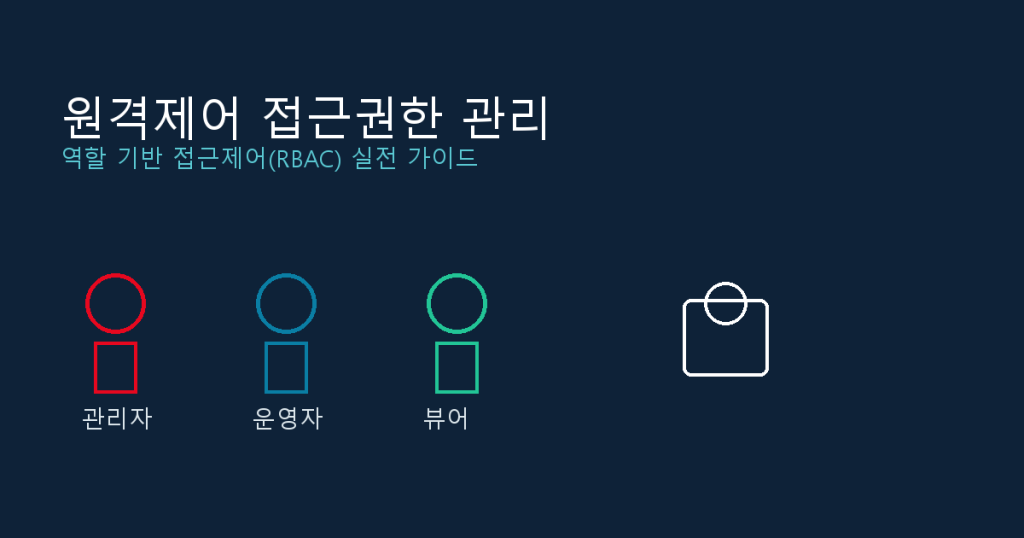
Organizations that roll out a remote control solution often overlook one thing: who should actually be able to reach which computer. When every account is granted access to the full list of machines by default, the risks stack up quickly — staff can reach systems outside their responsibility, and former employees’ access can linger long after they’ve left. This post walks through how to apply role-based access control (RBAC) to a remote support deployment in practice.
1. Why Access Design Matters for Remote Control, Too
- Full access tends to become the default: To get things running quickly, many teams grant every account access to every machine at rollout. As the organization grows, that same setup becomes a standing security risk.
- Job scope and access scope drift apart: A branch or department staff member being able to reach servers or other branches’ machines that have nothing to do with their job is a real problem from an audit standpoint.
- Cleanup gets missed at offboarding or role changes: An account may be deactivated, but if its group membership or permission mapping isn’t removed, those old permissions can resurface unintentionally if the account is reactivated or a similar one is created later.
2. The Basic Structure of RBAC: Roles, Permissions, Resources
Instead of granting permissions directly to individual users, RBAC introduces an intermediate layer — the “role” — maps permissions to that role, then assigns users to roles.
- Role: A grouping by job function, such as helpdesk agent, system administrator, or auditor.
- Permission: The actual actions allowed — remote connection, file transfer, viewing session recordings, changing settings, and so on.
- Resource: The target being accessed — a machine, a group of machines, a branch, or a department.
With this structure, when people change you just reassign roles, and when policy changes you just update the role’s permissions — far easier than touching every individual account.
3. Common Role Types in a Remote Control Environment
- Full administrator: Has every permission, including creating and deleting accounts, setting policy, and viewing audit logs. This should be a small handful of people — typically two or three, regardless of organization size.
- Helpdesk agent: Can remotely connect only to machines within their assigned department or branch, with no account management or policy permissions.
- Viewer / auditor: A read-only role that can review session records and logs but cannot actually take remote control. Useful for internal audits and compliance work.
- Temporary guest: Granted to contractors or participants in a specific project, ideally with an expiration date built in from the start.
4. Applying the Principle of Least Privilege
Every role design should start from one rule: grant only the minimum access needed to do the job.
- Group machines by branch or department, and restrict each role to only the group it’s responsible for.
- Allow the connection itself, but separate out higher-risk capabilities — file transfer, remote reboot, registry access — as distinct permissions reserved for administrator-level roles.
- Review each role’s access scope on a regular cadence (quarterly, for example) to confirm permissions still match actual job responsibilities after reorganizations or role changes.
5. Temporary Access and Expiration
Contractors, new-hire training, and short-term project participants often need access only for a limited window. For these cases:
- Check whether your remote control solution supports expiration dates or automatic revocation for granted access.
- Creating a temporary account without an expiration date makes it easy for that access to sit unused after the project ends — set a revocation date at the moment access is granted, not after the fact.
- Keep temporary access on a separate role where possible, rather than mixing it into the roles used by permanent staff.
6. Tying Permission Changes to Your Audit Trail
A record of who was granted what permission, and when it was revoked, is itself an important audit artifact. Just like session logs, permission change history is worth retaining separately — it becomes essential for tracing root cause after a security incident or responding to an internal audit.
7. Rollout Checklist
| Item | What to Check |
|---|---|
| Role definitions | Are roles split out by function — administrator, agent, auditor, and so on? |
| Least privilege | Is each role limited to only the machines and capabilities its job requires? |
| Temporary access | Do contractor and short-term accounts have expiration dates set? |
| Periodic review | Is each role’s access scope reviewed on a quarterly basis? |
| Change history | Are permission grants and revocations retained alongside the audit log? |
8. Wrapping Up
Security for a remote control deployment isn’t complete just because authentication and encryption are solid. It also needs a system for designing, by role, exactly who can access what — and for reviewing that system regularly. Tools like Y-Remote, which pair role-based access scoping with session auditing, make it possible to run this kind of access governance without building extra infrastructure on top.