
Remote support means stepping into a customer’s screen and device. Even when the connection works perfectly, trust collapses on the spot if the customer doesn’t understand who is looking at what, for how long, and why. This guide covers how to design a consent flow before any remote support session starts.
Why Consent Comes Before the Connection Technology
A customer’s screen often shows personal email, chat threads, or banking apps that have nothing to do with the support task. Connecting without consent causes real problems:
- Personal data is exposed beyond what the task needs.
- It becomes hard to explain later “who saw what and when,” which invites disputes.
- The customer is left feeling you “snuck in,” which makes the next support request harder.
When the consent record is stored alongside the session log, you have a factual basis if something goes wrong. See our earlier post on session logging and audit trails for the logging side.
The Four Things a Consent Step Must Cover
- Who: the customer can see which agent or department is connecting.
- Scope: full screen or a single app, view-only or full mouse and keyboard control.
- Duration: how long the session lasts, or the condition that ends it automatically.
- Exit: the customer can end the connection at any time with a single click.
A Practical Flow: One Approval, Three Reminders
The consent screen doesn’t need to be complicated. Instead, make sure the customer understands the situation at each stage.
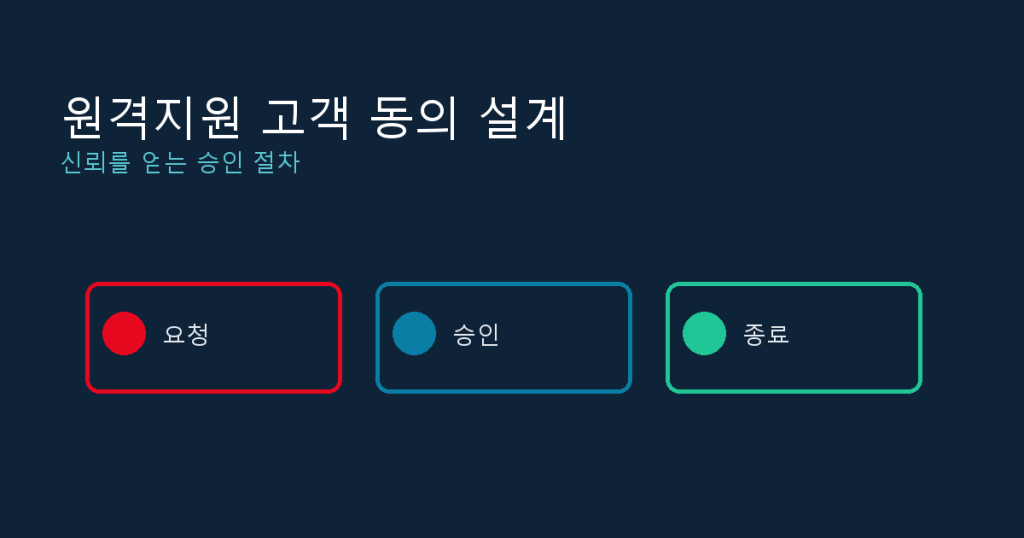
- Request: the customer asks for help, or the agent briefly explains why remote access is needed.
- Approval: a pop-up summarizes scope and duration in a sentence or two, with a “details” link for the full text. Connect only after explicit approval.
- In progress: keep a visible “remote session active” badge on screen so the customer never forgets someone is watching.
- Wrap-up: send an end-of-session notice with the connection time and a summary of what was done.
Patterns to Avoid
- Always-on access as the default. Leaving access permanently open conflicts with consent. Allow it explicitly, only where needed.
- Vague wording. “We connect for technical support” doesn’t reveal the scope. State exactly what is shared.
- Dark-pattern screens. Hiding the decline button turns consent into coercion. Show approve and decline at equal size, side by side.
- No after-the-fact visibility. If customers can’t see what connections happened, trust never builds.
Unattended Devices Need a Separate Policy
Kiosks and digital signage have no one in front of the screen, so a real-time approval model doesn’t fit. A more realistic approach:
- Get remote access approved up front, at the contract or internal-policy level.
- Limit access by role and use it only for clearly defined work such as maintenance or incident response.
- Log every connection with time, operator, and action.
- Tell on-site staff in advance when remote maintenance may happen.
Checklist
- Can the consent text be read on one screen?
- Can the customer choose the sharing scope (view, control, file access)?
- Is the disconnect button easy to spot at any time?
- Are the consent time and decision logged automatically?
- Is the unattended-device policy documented separately from live consent?
- Can customers review or request their past session records?
Bottom Line
A consent flow is both a security feature and part of the customer experience. Knowing why someone is looking at their screen often matters more to satisfaction than connection speed. Sketch the consent flow first, then pick tools that fit it.
For a stable remote support setup, take a look at Y-Remote, a browser-based remote control service with approval, permission, and access-log features.