
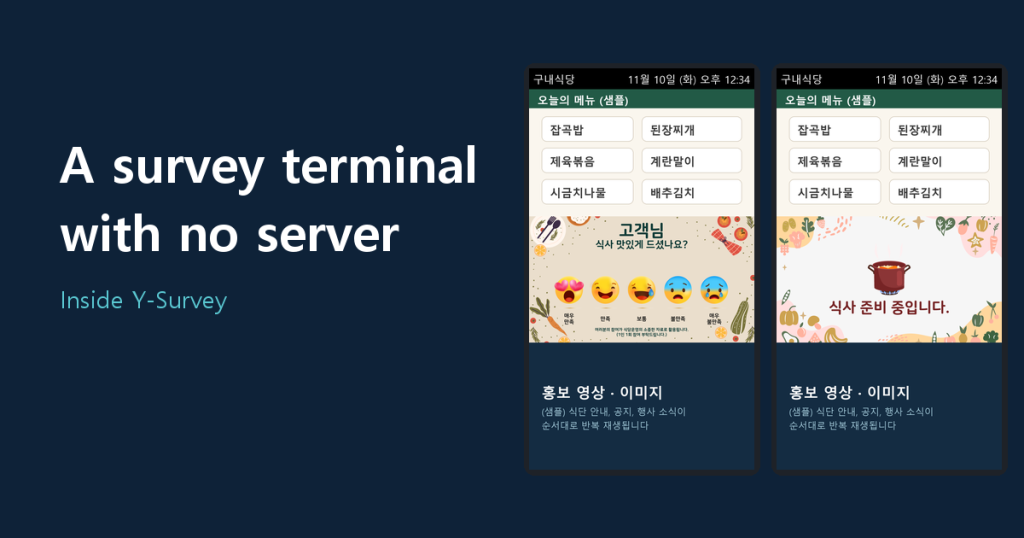
A portrait screen stands next to the serving line in a cafeteria. Tap one of five emoji, see “Thank you for taking part,” and you are done. One touch is all a diner does. That is the first impression of Y-Survey, a satisfaction survey terminal that ybroad develops and sells directly.
This post is based on a hands-on look at Y-Survey’s source and behavior, organized into the screen, how it works inside, and how it is run on site. Component names and setting values are left out on purpose. The on-screen text in the images is Korean and can be edited per site.
The screen has four zones
A single 1080×1920 portrait screen is split into four zones, top to bottom.
- Header bar: a title set by the administrator and a live clock
- Menu zone: today’s menu image (replaced by swapping one picture)
- Voting zone: five emoji buttons from “very satisfied” to “very dissatisfied”
- Promo zone: notices, menu info and event videos looping in order
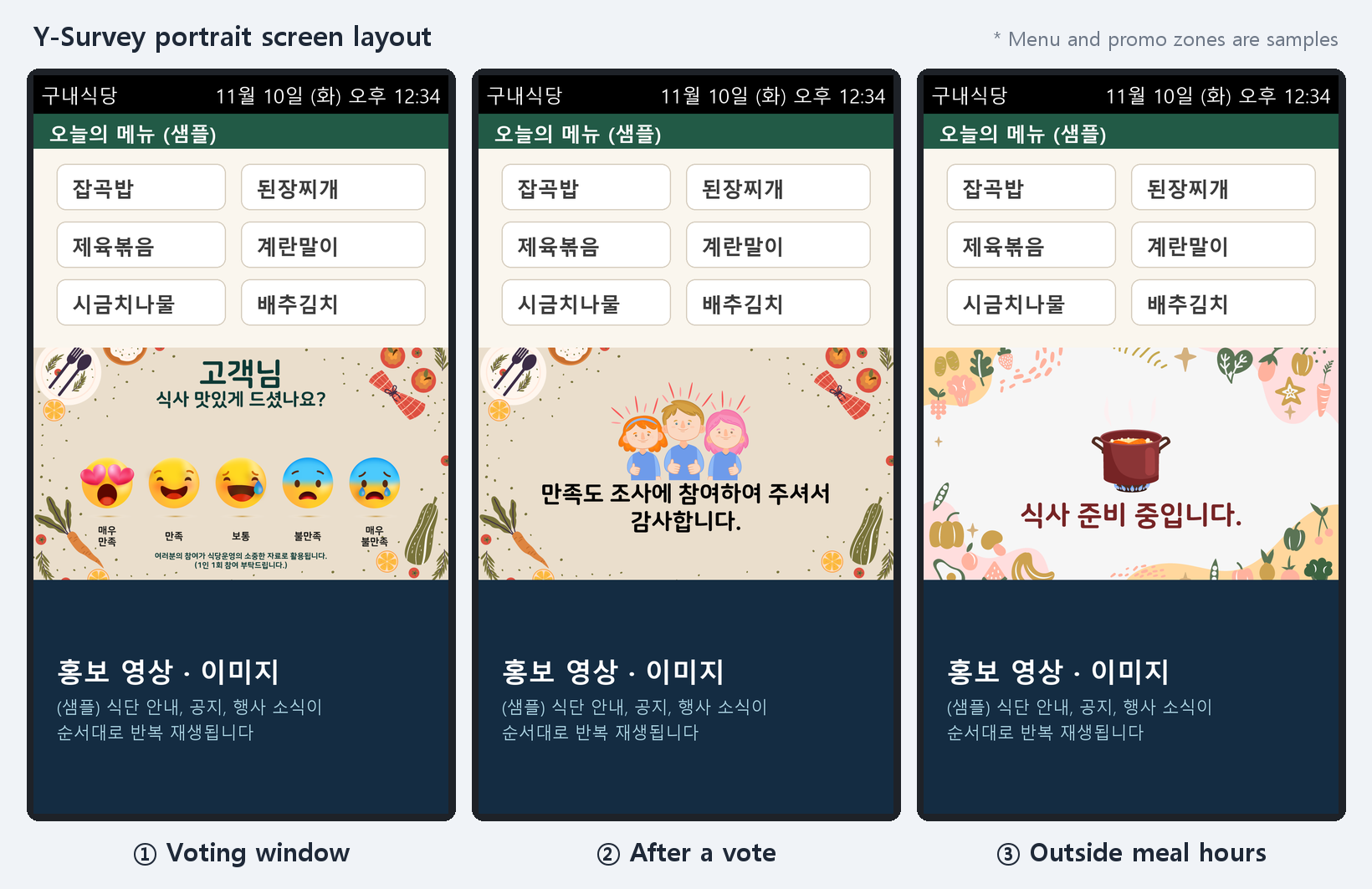
The screen switches between three states. During a meal window the emoji buttons are visible. Right after a vote, a thank-you screen shows for 1.5 seconds and fades out. Outside meal hours the buttons are hidden entirely and a “Meal is being prepared” screen appears, so a tap at the wrong time never gets recorded.
The key point: there is no server
Y-Survey does not talk to any server. The app does not even hold an internet permission. Votes, settings, menu images and promo videos all live on the terminal, and every single vote is written to that day’s tally immediately. With no server, you get:
- Tallying never stops when the network drops. Swapping the cafeteria router or running on an isolated network makes no difference.
- Because each vote is saved on the spot, the tally so far is kept without any shutdown routine.
- No names, contacts or accounts are collected. All that is stored is “how many times each score was chosen in which meal period.”
The trade-off is that the system cannot stop one person from tapping repeatedly. With no identifying data, that limit is handled by the “one vote per person” notice on screen and by on-site operation.
Tallies that follow the clock
The administrator sets a title and the start and end times for four periods: breakfast, lunch, dinner and late-night. The terminal checks the time every second, switches the voting zone on and off, and tallies each vote under the period it arrived in.
The late-night period may cross midnight. If it is set from 22:00 to 02:00, a vote at 1:00 a.m. is counted toward the previous business day’s late-night meal. Because data is grouped by business day rather than calendar date, late-night results are not split across the date boundary in reports.
One Excel sheet as the report
Reporting is just picking a start and end date on the administrator screen. The terminal reads the daily data for that range, builds an Excel file and saves it to the USB drive plugged into it.
- Rows: date × meal period (breakfast, lunch, dinner, late-night)
- Columns: counts from “very satisfied (5)” to “very dissatisfied (1)”, number of participants, and rating
- Rating: an average weighted by the count at each score
- Last row: totals and the overall rating for the whole range
While saving, the screen warns “Do not remove the USB drive until this screen disappears,” and shows generation and save as separate steps. Staff can pull a report right at the terminal, no computer needed.
Run on site with one USB drive
With no server, content also goes in by USB. The update button on the administrator screen checks three things in order, menu image, promo media and the program itself, applies what it finds, and shows each step as success, failed or none. If there is a program update, the terminal reboots itself after installing.
The promo zone mixes images and mp4 videos. How long an image stays on screen is set by the number at the end of its file name. Add _10 to the end and it stays 10 seconds; with no number the default is 30 seconds, and the minimum is 3 seconds. You can adjust playback time through file names alone, with no scheduling software.
A few more behaviors are built in for the field:
- The app launches automatically at power-on, and the system bars and swipe menus are blocked so users cannot easily leave the survey screen.
- The settings screen is protected by a separate entry method so it cannot be opened by accident.
- Each terminal needs a license issued against its own ID. Tell us the ID shown on first launch and we issue the license.
- If an unexpected error occurs, the cause is written to a file for on-site troubleshooting.
Variants for different sites
Several variants were built from the same base to match site requirements.
- 3-level: three buttons (satisfied, neutral, disappointed); the middle columns also drop out of the report
- Landscape: a layout for horizontal screens
- Dual question: two questions tallied separately on one screen
- Free-text opinion: takes a written comment along with the score
- Live count: shows the running count for the item just voted
- Multilingual: a Spanish-language screen version
Where it fits
It suits places like cafeterias, where people file past and feedback has to come from a single touch with no login or typing. It also fits sites with unstable or restricted networks. Since no personal data is collected, the on-screen notice stays simple too.
Inquiries
Y-Survey is supplied directly by ybroad. We prepare the install environment, the screen design and wording, and the time-period settings to fit your site. Send an inquiry through the system build and adoption inquiry button on this blog or via the ybroad website.